
Help center
How to create your cookbook
Everything you need to know to turn your CookMate recipes into a beautiful printed book — from choosing the paper to drafting the whole book with AI.
- 1RecipesImport recipes from CookMate
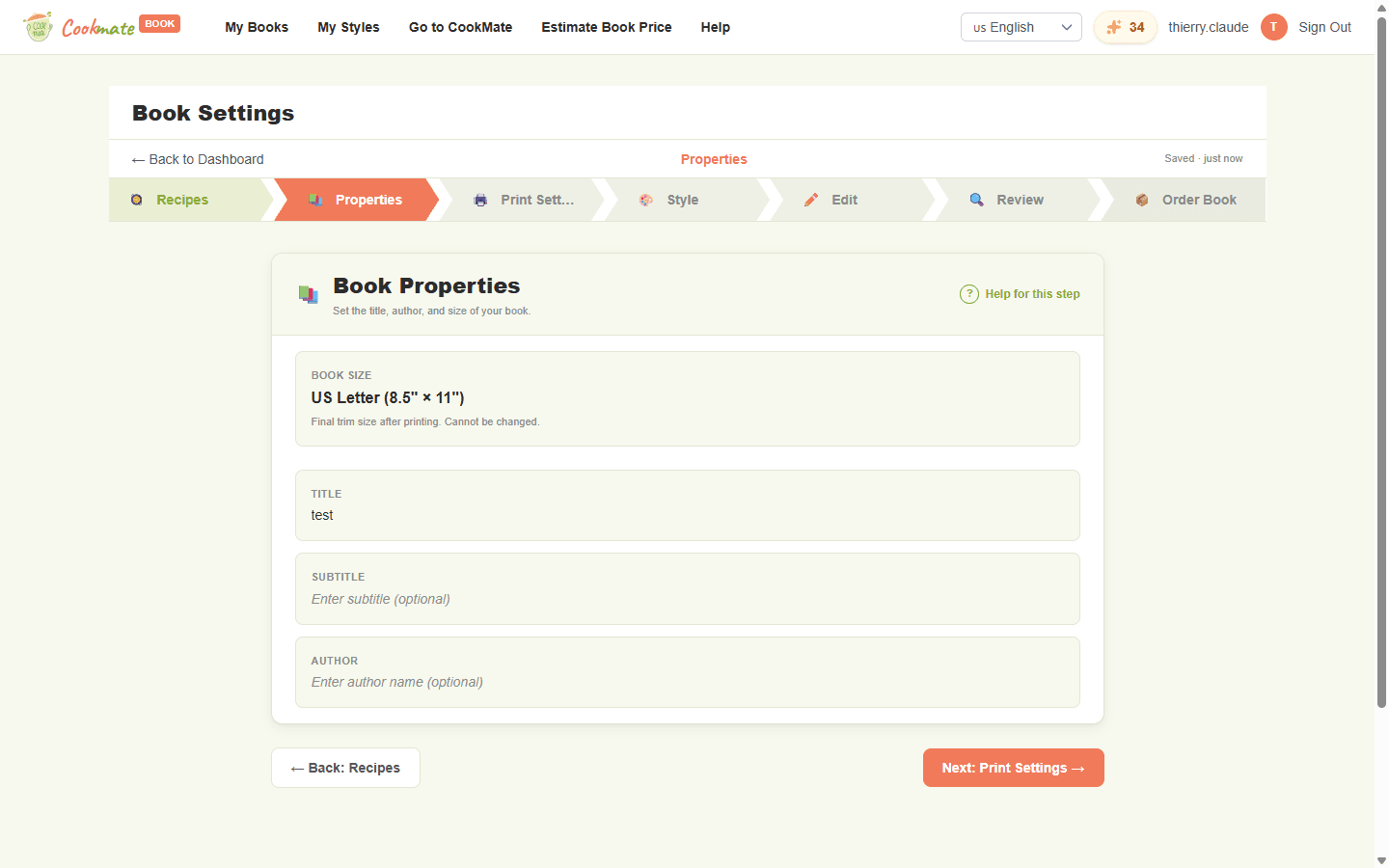
- 2PropertiesTitle, author and book size
- 3Print SettingsColor, binding, paper and cover finish
- 4StyleThe look of your pages
- 5EditDraft with AI, then fine-tune pages and covers
- 6ReviewCheck and validate the PDFs
- 7Order BookOrder printed copies or buy the PDF
How CookMateBook works
CookMateBook turns the recipes you collected in CookMate into a real printed cookbook, or a PDF. Each book is built in seven steps, shown as tabs at the top of the book page. You can go back to any step at any time.
Do I need a CookMate account?
Yes. You sign in to CookMateBook with your CookMate account, and your recipes are imported from your CookMate collection. The AI features use the AI credits of that same account.
How long does it take to make a book?
With Draft my book with AI, you get a complete first draft in a few minutes. Most people then spend some time adjusting pages, photos and covers. There is no deadline: your book waits for you on your dashboard.
Can I make several books?
Yes. Each book has its own recipes, print settings, style and pages. Create a new one from My Cookbooks with the New Book tile.
Is my work saved?
Book settings are saved as soon as you change them. In the page editor, click Save Changes when you're done with a page; the editor warns you if you try to leave with unsaved changes.
1. Your recipes from CookMate
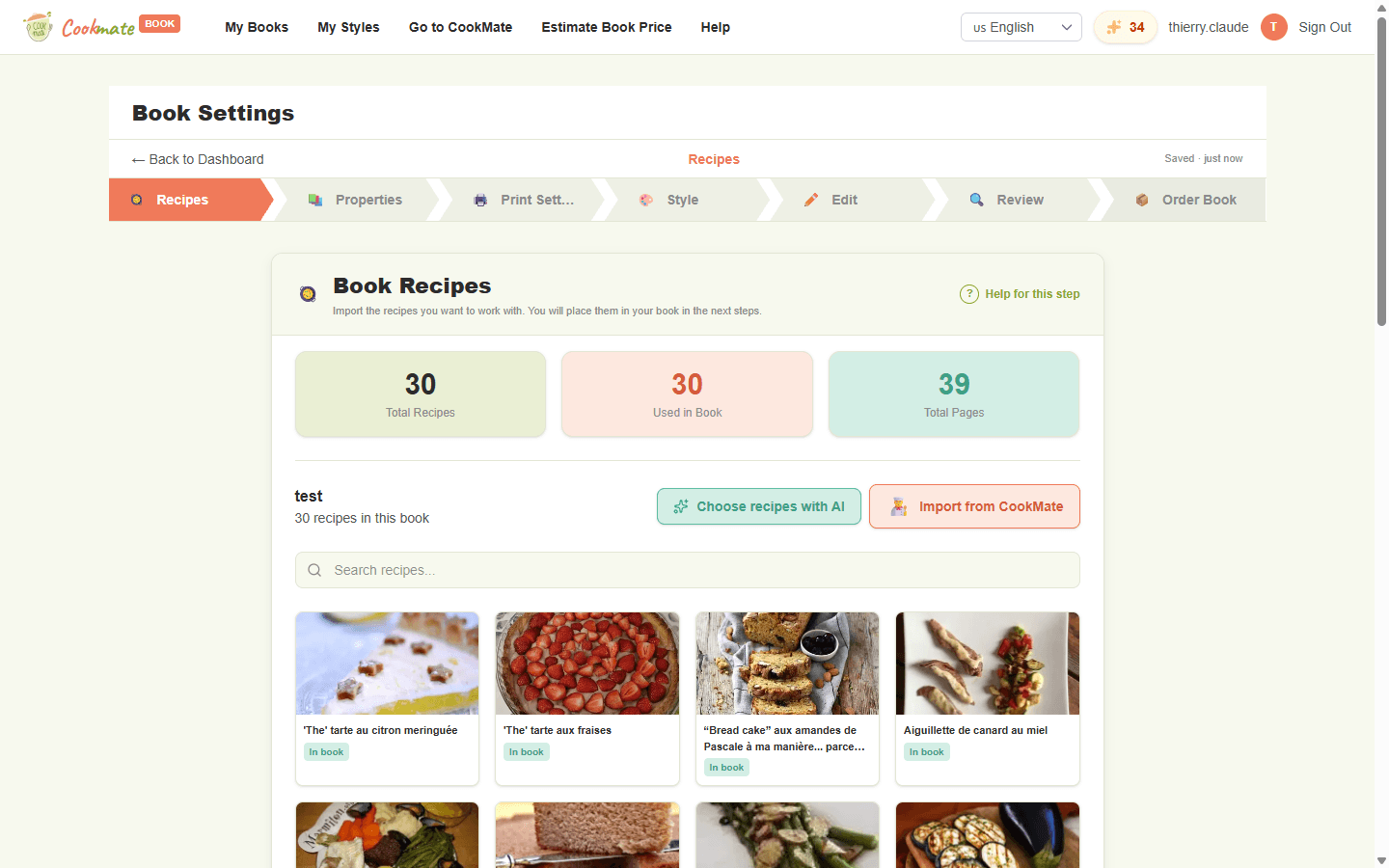
Your book's recipes come from your CookMate collection. First import the ones you want into the book; then place them on pages, by hand or with the AI draft.
How do I import recipes?
In the Recipes tab, click Import from CookMate, select recipes from your CookMate collection and confirm. Imported recipes are marked Not placed yet until they are used on a page.
What is imported with each recipe?
The title, photo, description, ingredients, instructions, comments, nutrition, categories and tags, plus the prep time, cook time, total time, servings and rating. On the page, each of these is a separate block that you can show, hide, move and style.
What does “Choose recipes with AI” do?
Describe what you'd like (for example “vegetarian summer dishes” or “quick weeknight meals”) and, optionally, how many recipes. The AI picks matching recipes from your own CookMate collection; it never invents new ones. You review the selection before anything is imported. It costs 1 AI credit, and choosing All recipes is free.
If I edit a recipe in CookMate, does my book update?
No. The book keeps its own copy of each recipe, taken when you imported it. To bring in a newer version, remove the recipe from its page, delete it from the Recipes tab and import it again.
Can I change a recipe's text just for the book?
Yes. In the page editor, select a block (ingredients, steps, description…) to change its text and formatting on that page. Your recipe in CookMate is not affected.
What do “Used in Book” and “Ready to Place” mean?
Used in Book counts the recipes already placed on a page. Ready to Place counts the imported recipes that aren't on any page yet.
How many recipes can a book hold?
Up to 500 recipes per book.
Why can't I delete a recipe?
A recipe used on a page is locked. Remove it from its page in the editor first, then delete it from the Recipes tab.
2. Book properties
This tab sets your book's identity: its title, subtitle, author and size.
Which book sizes are available?
Two sizes: Standard, a portrait book of 8.5 × 11 inches (21.6 × 27.9 cm), and Square, 8.5 × 8.5 inches (21.6 × 21.6 cm). Standard gives more room for long recipes and for two recipes per page; Square has a modern, coffee-table feel and suits photo-led recipes.
Can I change the size later?
No. The size is chosen when you create the book and can't be changed, because every page layout is designed for one exact size. To switch, create a new book in the other size and import your recipes again.
Where do the title, subtitle and author appear?
On the book's title page and on the covers. Subtitle and author are optional: leave them empty if you don't need them. You can edit them at any time.
3. Print settings
These options decide how your book is physically made. They affect the look, the feel and the price. Here is what each one means:
Color Type

Black & White
Text and images in shades of gray. Much more affordable, ideal for text-only recipe collections.

Full ColorDefault
Every page printed in color. The right choice as soon as your recipes have photos.
Print Type

Standard(150 DPI)
Good quality for text and simple images, at a lower price.

Premium(300 DPI)Default
Richer colors and sharper photos. Recommended for color books with photos.
Bind Type

Perfect BoundDefault
A classic softcover with a glued, square spine, like a paperback. At least 32 pages.

Coil
A spiral binding: the book lies completely flat on the counter while you cook. At least 2 pages.

Hardcover
A rigid cover with your design printed directly on it. The most durable, and a perfect gift. At least 24 pages.
Paper Type

Uncoated cream #60
A soft, warm-toned paper with a natural feel. Lovely for a vintage look and text-heavy books.

Uncoated white #60
A bright white paper with a natural, non-shiny finish. Easy to write notes on.

Coated white #80Default
A thicker, smooth paper that makes photos vivid. Recommended for color books.
Cover Finish

Glossy
A shiny cover that makes colors pop and wipes clean easily.

MatteDefault
A soft, non-reflective cover with an elegant look.
What should I choose for a family cookbook full of photos?
Our favorite combination: Full Color, Premium, Coated white #80 paper and a Matte cover. Choose Hardcover for a gift that lasts, or Coil if the book will live open on the kitchen counter.
Why do I get a minimum page warning?
Each binding needs a minimum number of interior pages: 2 for coil, 24 for hardcover and 32 for perfect bound. If your book is shorter, add recipes or pages, or choose another binding.
What is the spine color, and why does the spine width change?
Perfect bound and hardcover books have a printed spine, in the color you choose. Its width depends on the number of pages, so it is calculated from the final interior. That is why you validate the interior before the cover.
How much will my book cost?
The price depends on the size, number of pages, color, print quality, binding, paper and shipping destination. Use the price estimator to compare options; the exact price is shown when you order.
Can I change the print settings later?
Yes. Once your PDFs are validated, changing a print setting cancels the validation: review and validate the interior and the cover again before ordering. After you have paid, you can change them freely; the paid order keeps the settings it was ordered with.
4. Styles and custom styles
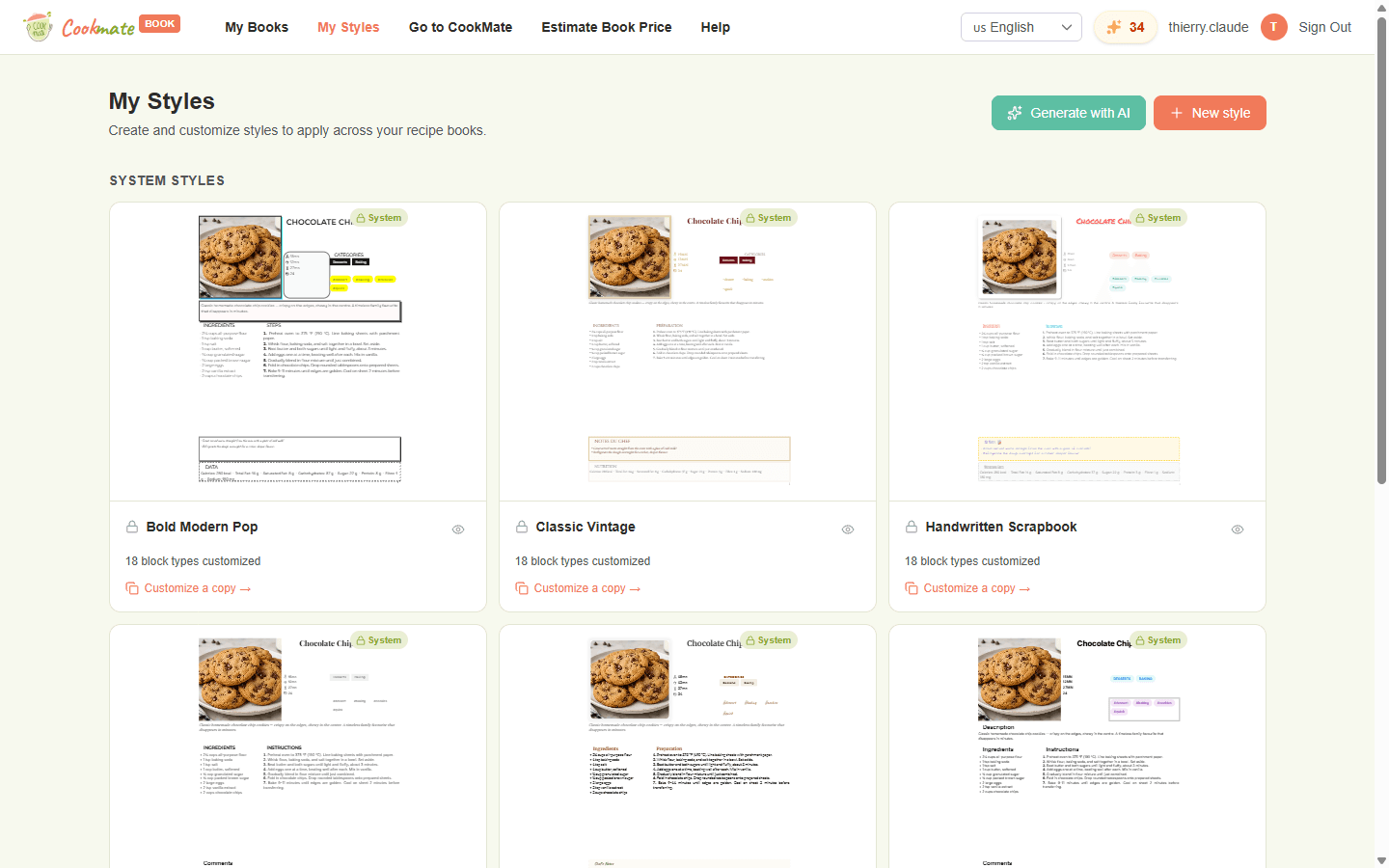
A style sets how your book looks: fonts, colors, title decorations and backgrounds for each kind of block. It works together with page layouts (templates), which set where things go. You can change one without touching the other.
Built-in styles:Modern EditorialRustic FarmhouseSwiss MinimalistClassic VintageHandwritten ScrapbookBold Modern PopTimeless Elegant
What is the book's default style?
The Style tab sets the default style used for every new page. When you change it, you choose between Apply to all pages (restyles the whole book right away) and Default only (only new pages use it). You can also give a single page its own style from the editor toolbar.
Why does changing the style remove my validated PDFs?
Because your pages would no longer match what you approved. Changing the book invalidates the validated PDFs: review and validate the interior and cover again before ordering. You are asked before the change happens. Orders you already paid keep their own files.
How do I create my own style?
Open My Styles (or the Style tab of a book). Click New style and pick the style to start from, or open any style and click Customize this style. Built-in styles never change: you always work on your own copy. Give your style a name and click Save my style: it is then available in all your books.
How does the style editor work?
The left column lists every kind of block, grouped by where it appears: Cover, Section, Recipe and Decorative (free text, dividers, page numbers and the index). Open a block to change its font, size, weight, color, alignment, background, border, rounded corners and shadow, plus options that depend on the block: the ingredient and step list style, the block title and its text, the look of category and tag labels, the chapter and recipe entries of the index, and more. The right side shows your style on sample pages (cover, section, index and two recipe pages): click a tab to see one page, the grid icon to see them all, and − / + to zoom. A coral dot marks the blocks you changed but haven't saved yet.
What do Save, Save as copy and Discard do?
On one of your styles, Save keeps your changes in that style, and Save as copy leaves it as it is and turns your changes into a new style (click Save my style to keep it). On a built-in style, your first change starts your own copy: click Save my style to keep it, or Discard to drop it. If you close the editor with unsaved changes, you are asked before anything is lost.
What happens to my books when I edit or delete a style?
A style is shared, not copied: when you save changes to one of your styles, every page that uses it, in all your books, takes the new look. To try ideas without touching your books, use Save as copy first. If one of these books was already validated, you are asked first: saving invalidates its PDFs, and you review and validate it again before ordering. Orders you already paid keep their own files. A style that is still used by a book or a page can't be deleted: give those books and pages another style first. Built-in styles can't be changed or deleted.
Can I turn a page I designed into a style?
Yes. In the page editor, switch to preview mode and click Save Current Style as Template Style. The look of that page becomes a reusable style in My Styles.
How does “Generate with AI” work for styles?
Click Generate with AI in My Styles or in a book's Style tab. Name your style, describe the look you want, for example “rustic Provençal with lavender accents and an elegant serif font”, and choose Blank to start from scratch or an existing style to build on. The AI creates a new style and opens it in the editor, where you can fine-tune it like any other (from a book's Style tab, it also becomes that book's style). It costs 1 AI credit and needs a connected CookMate account. If the generation fails, nothing is charged.
Can the AI change an existing style?
Yes. Open the style in the editor, click Modify with AI and describe only what you want to change, for example “make the titles dark green and use a handwritten font for the comments”. Everything you don't mention stays as it is. On one of your styles, the result is saved straight into that style, and so into the books that use it: click Save as copy first if you want to keep the current version. On a built-in style, the result becomes a new style in My Styles. The AI starts from the last saved version, so save your manual changes before you ask. It costs 1 AI credit; if the AI changes nothing, nothing is charged.
How do I get good results from the AI?
Give a mood and concrete details: colors (“deep navy and mustard”), the kind of fonts (“bold condensed titles, easy-to-read serif text”) and decorations (“thin gold dividers, rounded tag labels”). Name the blocks you care about, such as recipe titles, ingredients, steps or comments. Not sure where to start? Open the guided style brief and fill in the general feeling, color palette and fonts: the description then becomes optional. When a result is close but not quite right, fine-tune it with Modify with AI or in the editor rather than starting over.
Page templates and custom templates
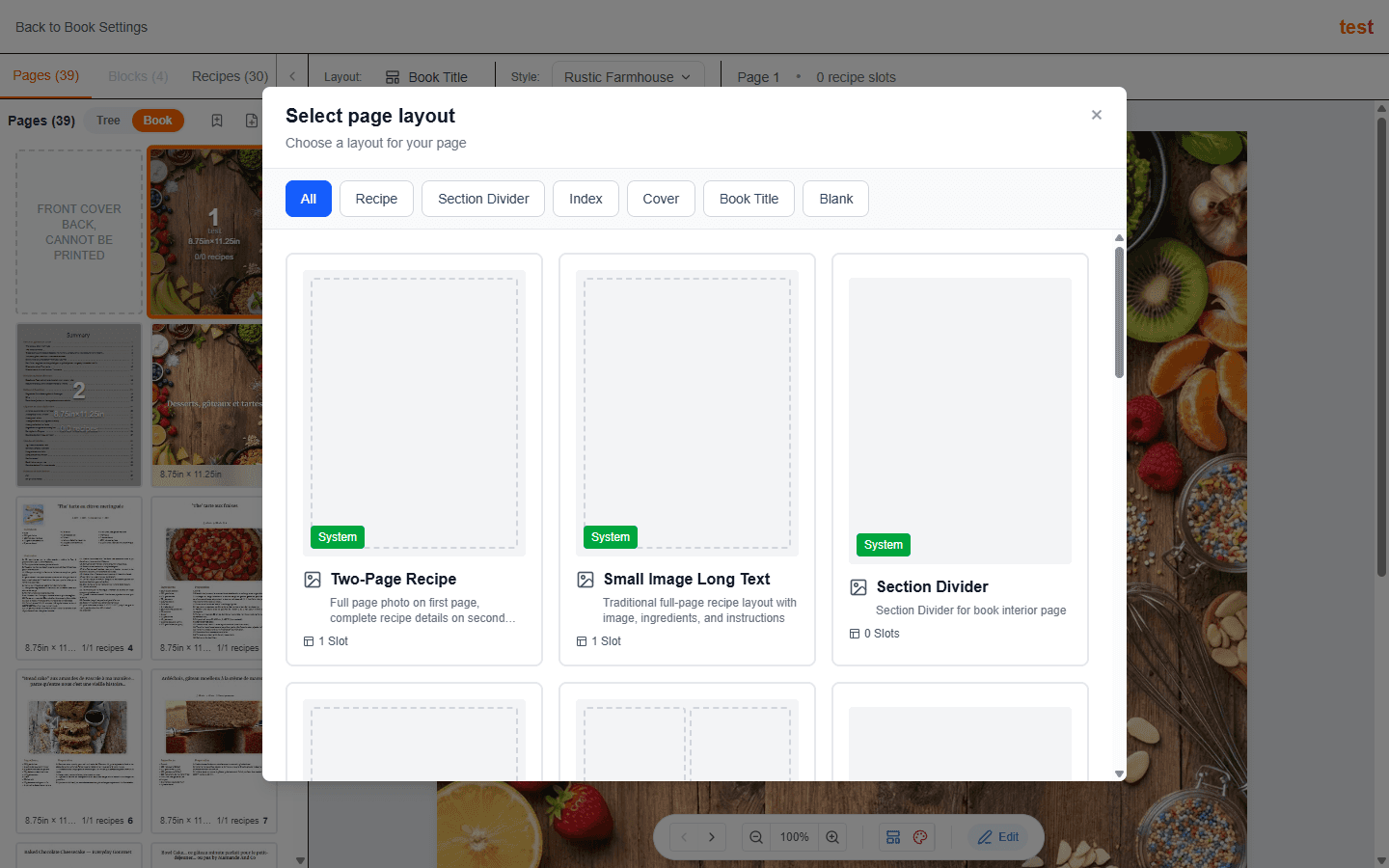
Templates (page layouts) decide what goes where on a page: how many recipes, where the photo sits, how the text flows in columns. Every page of your book uses one template.
What kinds of templates are there?
Recipe layouts hold one, two or four recipes per page: with a large or small photo, without a photo, in columns, or spread over two pages. There are also Cover, Book Title, Section Divider, Index and Blank layouts. Each book size has its own set.
What is a recipe slot?
A slot is the place for one recipe in a layout: a 2-slot template shows two recipes on the same page. Assign recipes to slots from the Assign tab of the editor, or by clicking an empty slot. Tick unassigned only to list only the recipes that aren't placed yet.
How do I change a page's layout?
Select the page in the editor and click Change layout in the toolbar. The recipes already on the page stay in their slots when the new layout has room for them. The index page's layout can't be changed.
Can I create my own templates?
Yes. Arrange a page the way you like it (move, resize, add or remove blocks), then switch to preview mode and click Save as Template Layout. Give it a name: it then appears in the layout picker next to the built-in templates, ready to reuse on other pages and in your other books of the same size. You can delete your own templates from the picker at any time.
What are blocks?
Everything on a page is a block: the recipe title, photo, ingredients, steps, comments, nutrition, details (times, servings, rating), categories and tags, the page number, plus any text, images and dividers you add yourself. Use Add/Remove in the Blocks tab to choose which recipe blocks are shown in a slot.
A recipe block is missing from my page. Why?
The recipe may have no content for it (for example, no nutrition information), or the block may be hidden. In the Blocks tab, open Add/Remove, select the slot and tick the blocks to display.
5. Editing your book
The Edit tab is where your book takes shape. Start from an AI draft or build it page by page in the interior editor, then design the covers.
What does “Draft my book with AI” do?
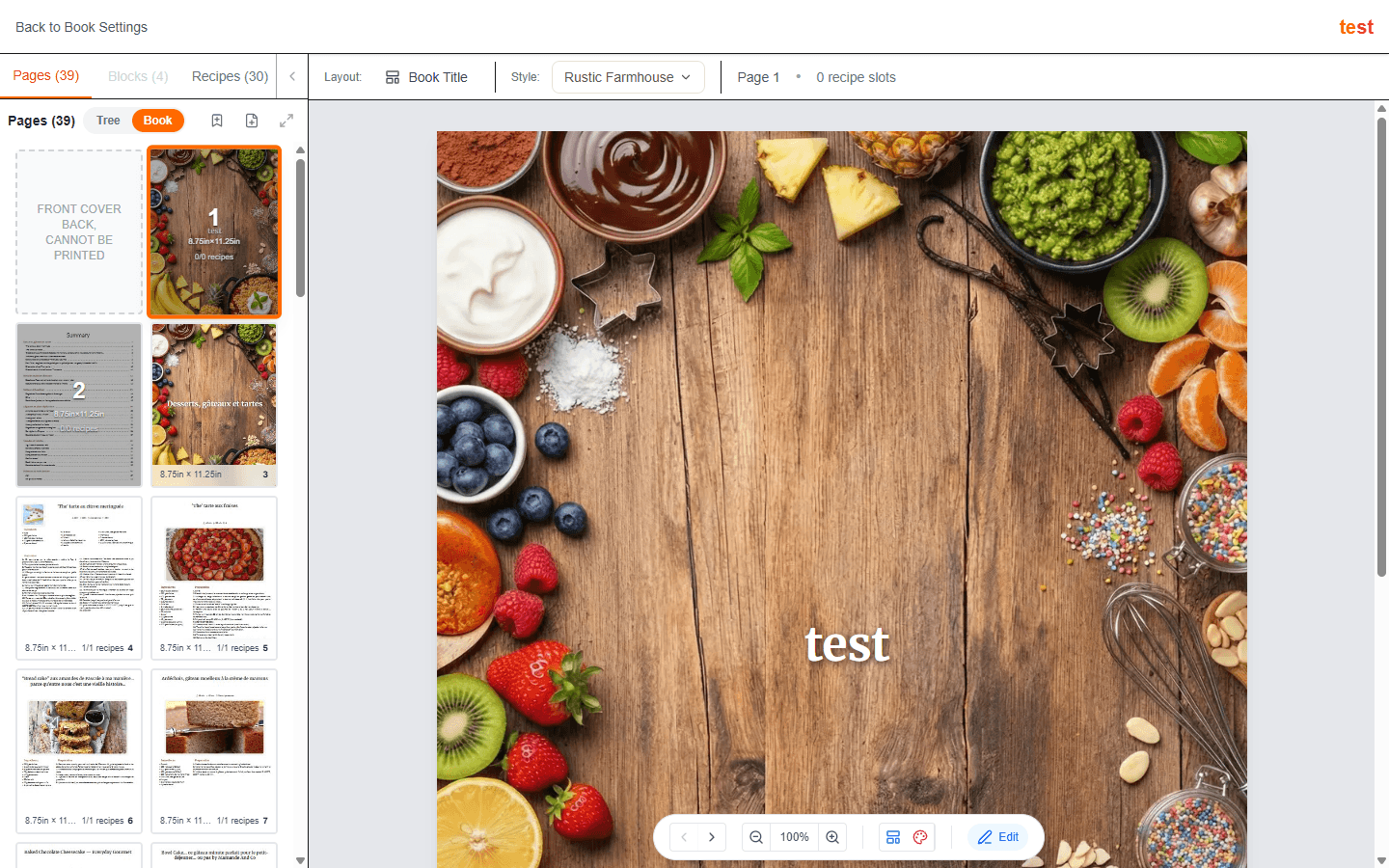
It builds a complete book from your imported recipes. It groups them into sections, picks the best layout for each recipe (with or without a photo, depending on text length and photo resolution), puts two or four recipes on a page where they fit, and adds a title page, an index, section dividers and background images that match your style. It's a starting point: every page remains editable.
Will the AI draft keep my existing pages?
No: it deletes all the pages of the book and creates new ones. Your imported recipes, print settings and style are kept, but a validation in progress is cancelled. Use it at the start, or when you want to start over.
How much does the AI draft cost?
It costs 5 times the price of a recipe generation, in CookMate AI credits. The exact number of credits is shown before you confirm.
How do I use the page editor?
The sidebar has four tabs: Pages (the book's structure: add, reorder by drag and drop, delete), Blocks (settings of the selected block), Recipes (search your recipes) and Assign (put recipes into slots). Click a block on the page to select it, drag it to move it, and use its handles to resize it. Undo, redo and zoom are in the toolbar. Click Save Changes when you're done with a page.
How do I organize my book into chapters?
In the Pages tab, click + Chapter to add a section divider, then add pages under it or drag pages into it. Switch between the Tree and Book views to see the structure or the pages side by side.
How does the index work?
Add an index page with Add index page, then click Generate index: it lists your sections and recipes with their page numbers. When pages or recipes move, an Index is out of date badge appears; just click Generate index again.
How do I add or replace a photo?
Select an image block and choose a picture: Upload File (up to 5 MB per image, 15 MB for backgrounds), your book's Gallery, our System Images, or From URL. Each book can store up to 300 MB of images.
What does the image quality indicator mean?
To print sharply, a photo needs enough pixels for the size it's printed at. The editor shows its effective resolution (DPI) and a rating from Excellent to Bad (pixelized). If a photo is too small, make it smaller on the page, replace it, or improve it with AI image enhancement.
What is AI image enhancement?
It enlarges a low-resolution photo so that it prints sharply. It takes 15 to 30 seconds, and you compare the original and enhanced versions before accepting. It uses AI credits; the cost is shown before you start.
What do the warnings in the editor mean?
Truncated content: a block's text doesn't fit, so part of it would be cut off. Make the block bigger, reduce the font size, shorten the text or pick a layout with more room. Low DPI: an image would print blurry (see above).
What are the dashed lines on the page?
They show the bleed (the outer edge that is trimmed off after printing) and the safe zone. Keep text and important details inside the safe zone, and let background images reach the outer edge.
How do I design the covers?
In the Edit tab, click Edit Covers. Design the front and back covers like any page: layout, background image, title, subtitle and author. The inside of the covers is not printed. The spine is added automatically, in your spine color.
6. Review and validate
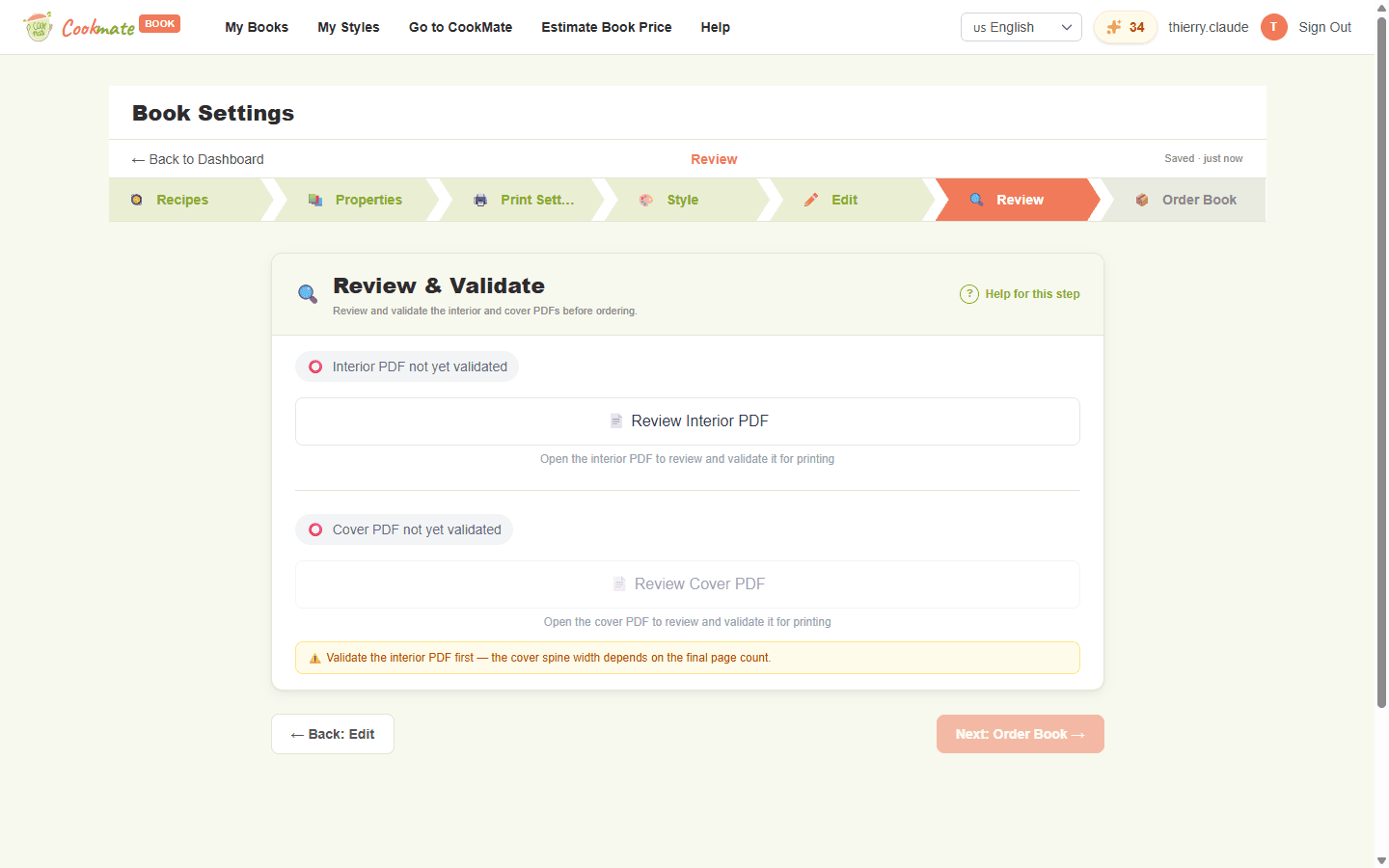
Before printing, you check and approve two PDFs: the interior and the cover. Validating locks exactly what will be printed: until you pay, any change to the book cancels the validation. Once you have paid, the book is unlocked and the order keeps its files.
How do I validate my book?
In the Review tab, click Review Interior PDF, flip through every page and validate it. Then do the same with Review Cover PDF.
Why must the interior be validated before the cover?
The spine width depends on the final number of pages, so the cover can only be built once the interior is final.
I found a mistake after validating. What now?
Simply edit the book. You'll be asked to confirm, because editing cancels the validation, and a payment you had started is cancelled too. Changing only the covers keeps the validated interior. Changing the interior also removes the cover validation, since the spine may change. Review and validate again afterwards.
The preview takes a while to appear. Is that normal?
Yes. A large book with many photos can take a minute or more to prepare. Keep the window open until it's done.
7. Ordering your book
Print orders need both PDFs validated. The digital PDF can be bought straight away, with or without printed copies.
How do I order a printed book?
In the Order Book tab, click Order Print Book, enter the delivery address, choose a shipping method and pay. Your book is printed on demand by our printing partner and shipped to your door.
How do I follow my order?
Your orders are listed on your dashboard with their status: paid, to be printed, in production, shipped. A tracking link appears as soon as the carrier provides it, you receive an email at each step, and you can download your invoice there.
Can I order more copies later?
Yes: click Reorder next to a past order. The same print files are reused, so there's nothing to validate again.
What is the digital PDF?
A high-quality PDF of your whole book, to read on screen, share or print yourself. Preview the first pages (watermarked) for free, then buy it from the Order Book tab. It stays available for download on your dashboard.
Can I change my book after ordering?
Yes. Once an order is paid, it keeps its own print files and digital PDF, and the book is unlocked: change it as you like. To order the new version, review and validate it again.
Can I cancel an order?
An order that hasn't been paid yet can be cancelled from your dashboard. Changing the book also cancels it, since its PDFs would no longer match. Once it's paid and sent to print, please contact us.
Can I delete a book I have ordered?
Yes. Orders you paid keep their own files, so your order history, downloads and reprints stay available. An order that hasn't been paid yet is cancelled with the book.
AI features and credits
AI features use the AI credits of your CookMate account, the same credits you use in CookMate. Your balance is shown in the header.
Which features use AI credits?
Choose recipes with AI: 1 credit (free when you select all recipes). Generate with AI and Modify with AI (styles): 1 credit. Draft my book with AI: 5 times the cost of a recipe generation. AI Image Enhancement: the cost of an image generation. The cost is always shown before you confirm.
What if I don't have enough credits?
Nothing is run and nothing is charged. You can get more credits from your CookMate account (Manage on Cookmate in the credits menu).
Why am I asked to connect or reconnect CookMate?
Recipe imports and AI features need an active connection to your CookMate account. If it has expired, click Reconnect and sign in to CookMate again.
Still have a question?
We're happy to help. Write to us and we'll get back to you.
Contact us